
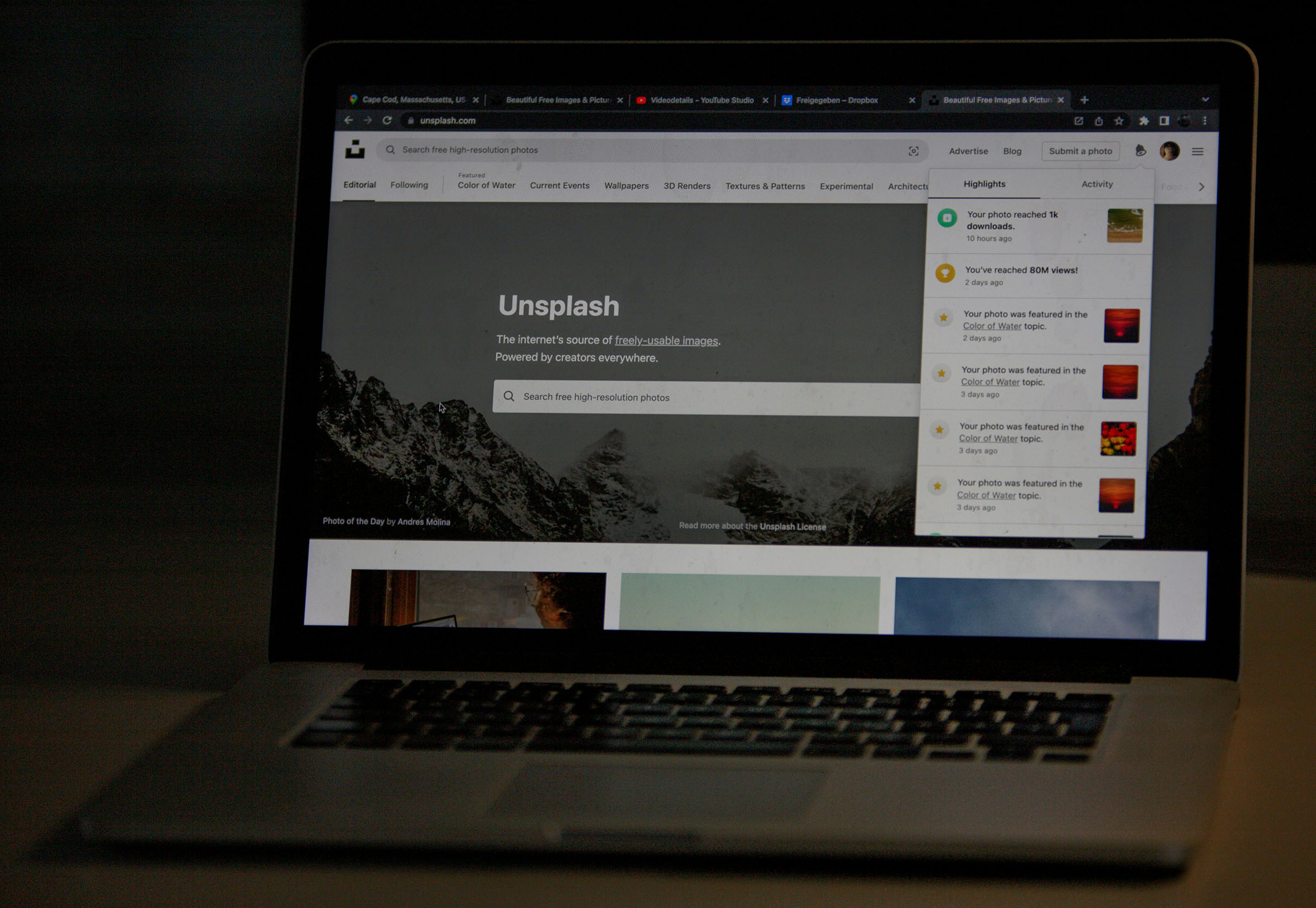
I’ve wasted a stupid amount of time searching for stock photos.
You know the drill. You’re writing a blog post, and you need an image. So you open Unsplash. Type some keywords. Scroll through 100 nearly-identical photos of someone pointing at a laptop. Click “Load More” a bunch of times. None of them quite fit. So you try Pexels. Then Wikimedia Commons, or another royalty free stock photo site. Then you’re 20 minutes deep, lost on tangent photos, and still haven’t found the right image.
Then the real fun begins. Download the image. Upload it to WordPress. Add alt text. Credit the photographer (or not). Realize the image is way too big, so you resize it. Upload again.
For one image.
Multiply that by every blog post, every client site, every project. It adds up to hours of mindless busywork that has nothing to do with actually creating something.
So I did what any reasonable person would do: I spent way more time building a solution than I ever would have spent just… searching for photos like a normal person.
Enter: Swell AI Image Block
I built a WordPress block that uses AI to automatically find the perfect stock photo based on your content. You don’t search. You don’t download. You don’t upload. You just write, add the block, and it figures out what image fits.
It reads the text around the block, sends it to OpenAI to understand the context, searches Unsplash, Pexels, and Wikimedia Commons simultaneously, ranks the results, and drops in the most relevant image. All in a few seconds.

👆 See this image? I just added the AI Image Block to my content, and the image was automatically selected. And it’s super relevant to this content.
If you don’t like the first one? Hit the shuffle button. It already has alternatives queued up.
The Fun Technical Bits
This was one of those projects where every “simple” feature turned into a rabbit hole.
The AI piece: Initially, I just wanted keyword extraction. But generic keywords like “technology” or “business” returned boring stock photos. So I engineered the prompts to prioritize the closest content to the block and focus on visual, concrete concepts. The AI now understands context way better than I expected.
URL-based image resizing: WordPress generates multiple file sizes when you upload an image. But since we’re hotlinking from APIs, there’s no physical file to resize. Instead, I built a system that constructs the right URL parameters for each source (Unsplash, Pexels, Wikimedia) and uses srcset/sizes attributes for truly responsive images. A mobile user downloading a thumbnail shouldn’t pull the same 2400px file as someone on a 4K monitor.
Zero configuration: The plugin works immediately after activation. No API keys, no setup screens, no settings to configure. That was surprisingly hard to pull off — I had to build a Node.js/Express proxy server (running on Railway) to securely handle all the API keys and usage tracking on the backend.
Freemium without the friction: I wanted a free tier that’s actually useful (10 AI-powered images/month), not a 3-day trial that forces you into a credit card. Integrating Freemius SDK and building the usage tracking system was its own adventure.
The Result
The plugin is stupidly fast. From inserting the block to seeing a relevant image: 2-3 seconds.
And the UX is what I’m most proud of. There’s no learning curve. You add the block, keep writing, and an image appears. If you want control, you can search manually, filter by source, change the resolution, hide credits (Pro feature). But the default path is zero-effort.
I’ve been using it on my own sites for the past few weeks, and it’s honestly changed how I write. I’m not breaking flow to hunt for images anymore. I just write, and the images show up.
Try It Yourself
AI Image Block is available now on WordPress.org and through Freemius.
Free plan: 10 AI-powered image selections per month
Pro plan: Unlimited everything, and hide the credits
If you’ve ever lost 20 minutes searching Unsplash for “the perfect image,” this plugin is for you.
Now if you’ll excuse me, I need to go find a stock photo of someone dramatically pointing at a computer screen for this blog post.

Just kidding. The plugin already did it.
Leave a Reply